
Step 1: Sign into Steam 🔑
ꔷ Sign in using the Steam App.
ꔷ The credentials are located in the provided .txt file.
🚨 Strict Rule: Do not share these credentials with anyone. Sharing account details is strictly monitored, and doing so will result in your access being permanently revoked!
Disable Cloud Saves🔐
Why? Cloud sync can overwrite your progress or someone else’s. Let’s work together to keep everyone’s saves safe!
Here’s how to do it:
1. Click Steam (top-left) → Settings.
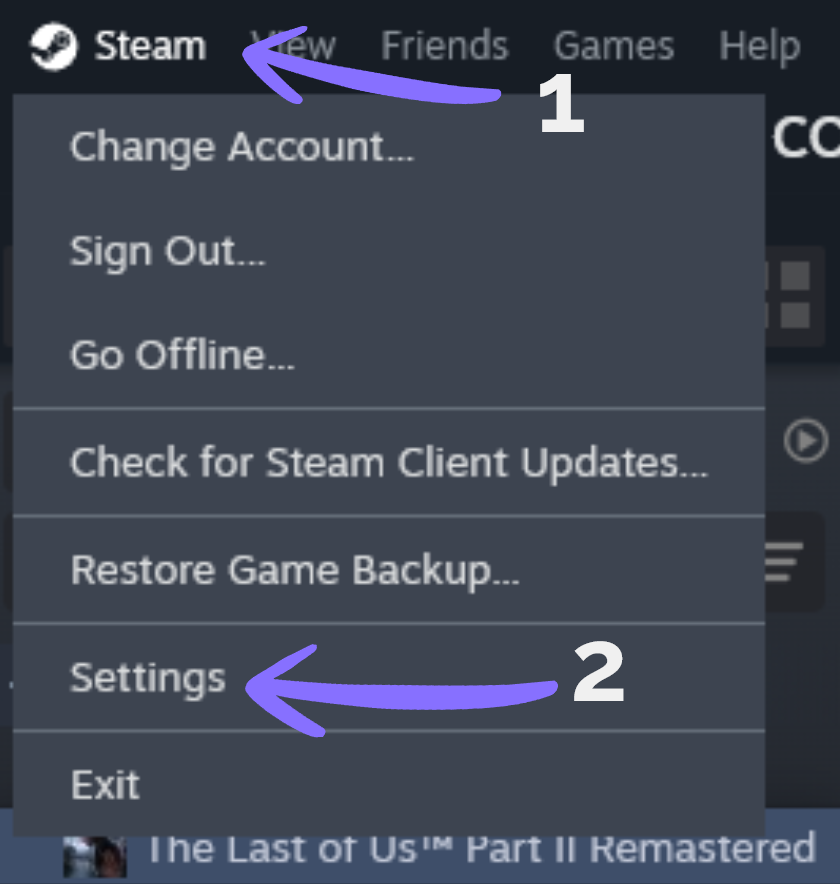
2. Go to Cloud
3. Disable “Enable Steam Cloud”
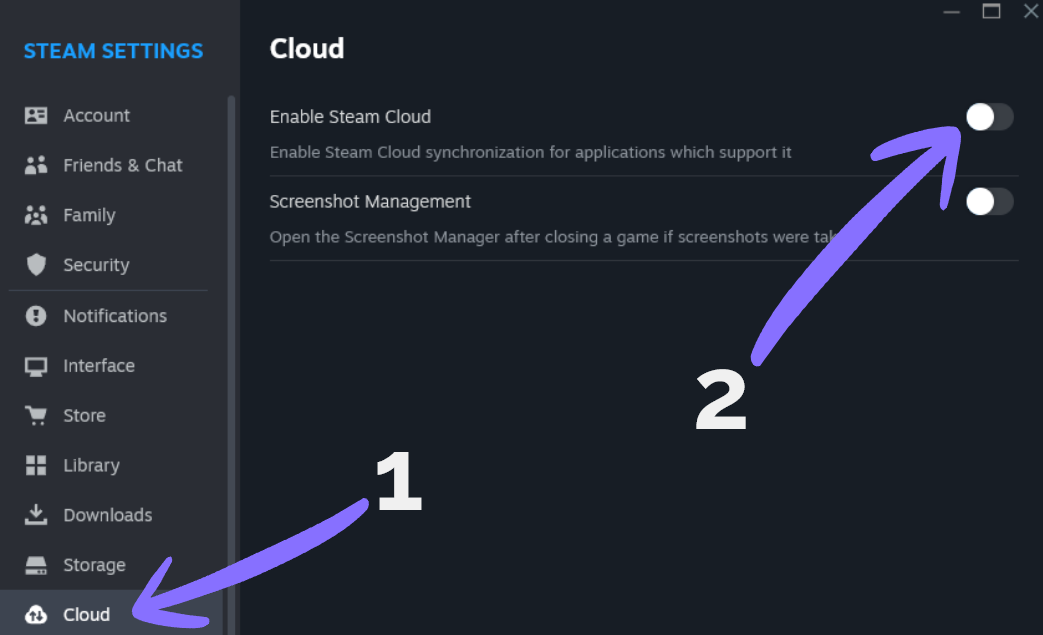
Toggle off “Enable Steam Cloud”.
(The toggle switch should be gray and positioned to the left. If it is already disabled, please leave it as is.)
Step 2: Install the Game 🎮
ꔷ Open your Steam Library.
ꔷ Install the game.
If you see a “CONNECT” button instead of Install or Play, please do the following:
1. Click the arrow 🔽 next to the button.
2. Click “This computer” → then select Install/Play.
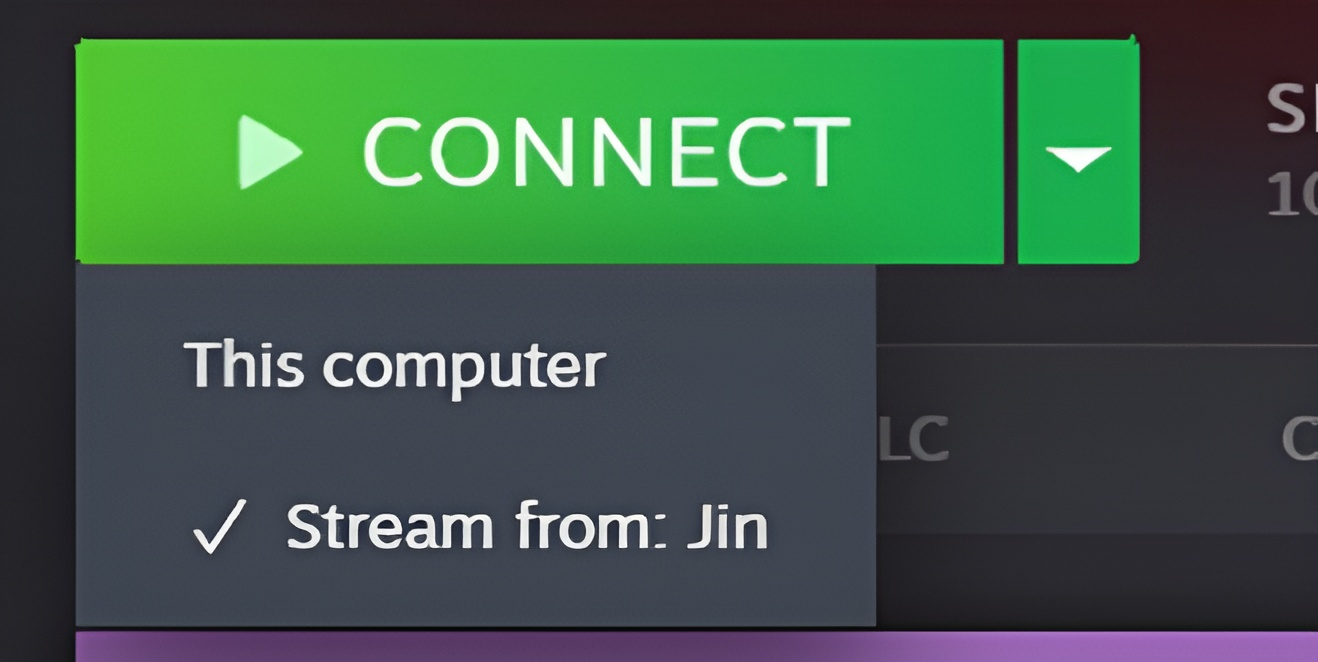
This process applies to both installing and playing the game.
Step 3: Go Offline 🌐➡️🚫
Click Steam (top-left corner) → Go Offline.
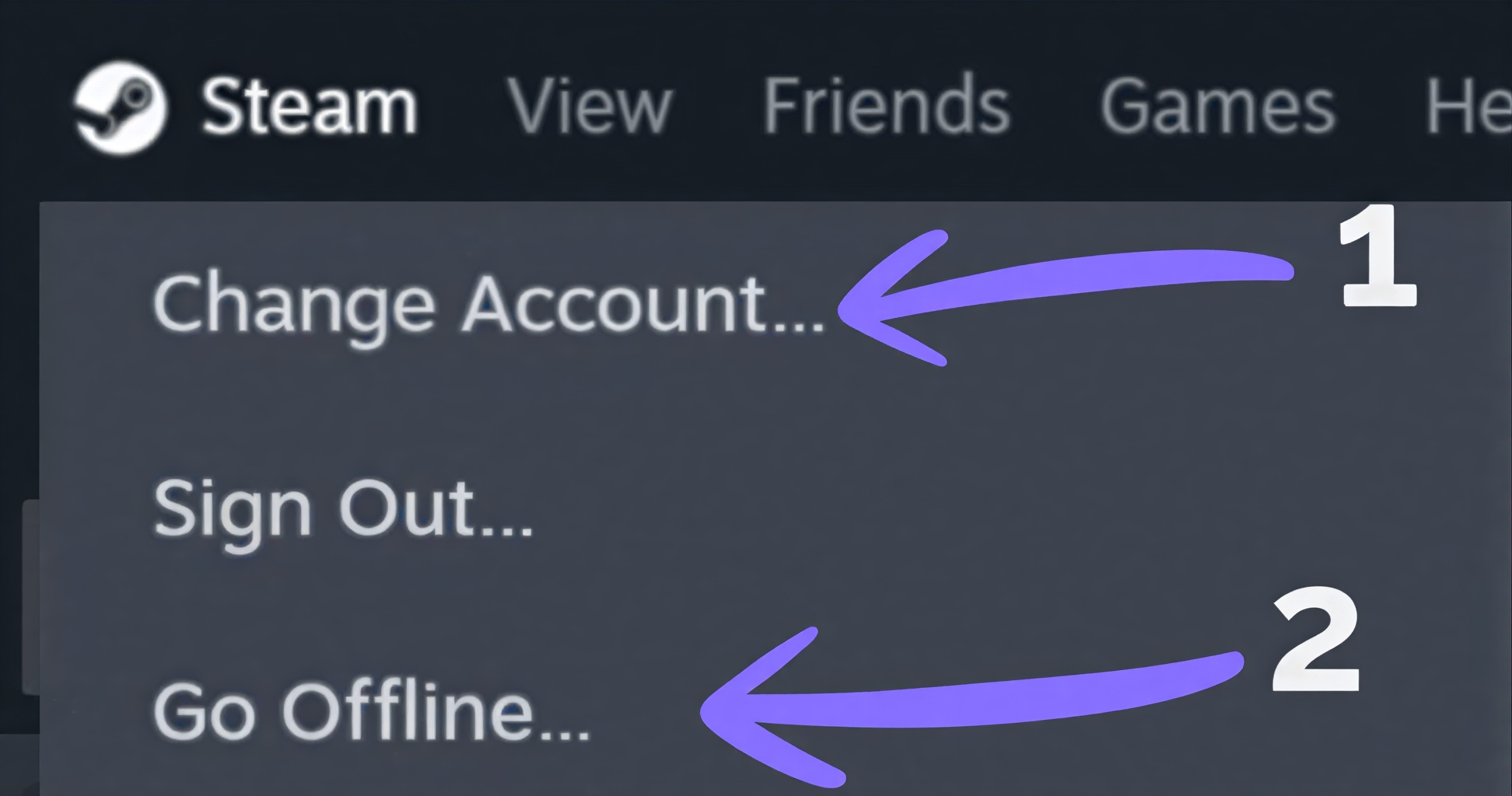
🚨 Strict Rule: You must always play in offline mode. Playing online causes account conflicts and ruins the experience for you and other users. Please be considerate!
Note: If the game uses DENUVO, please see the Denuvo Guide before going offline
Play!
Family View
If the account has Family View enabled, we cannot share the PIN/code with you for security reasons. Please do not insist on receiving it, we appreciate your understanding! 🙏
DENUVO GUIDE
If your game uses Denuvo DRM, you will need to run it online once to activate your hardware. 🎮
1. Launch the game online.
2. Play until you reach the main menu.
3. Close the game completely.
4. Proceed immediately to Step 3 and go Offline. 🚀
Seeing an activation error?
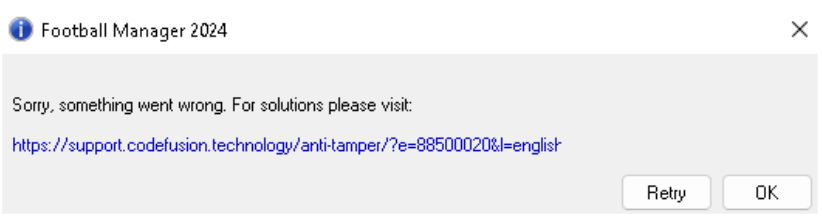
This means the Denuvo daily activation limit has been reached. Please try to activate your game every few hours
If the game was released this week, wait times can take up to 72 hours.
Denuvo does not run on a set clock, and activations are limited to 5 per day, per account. You will need to try again every few hours. Once a player activates the game, a new license will open up 24 hours from that exact moment.
Denuvo may deactivate and require you to go online again if you do any of the following:
ꔷ Update your GPU/System Drivers
ꔷ Perform a Windows Update
ꔷ Update the Game
ꔷ Make hardware changes to your PC
Please be aware that doing any of the above will void your current DENUVO token and require you to wait for a new activation slot.
Account Switching for DENUVO
If the game recently updated and we have provided additional accounts, please follow these steps to activate the game (if your current account has no free activation slots):
Back up your saves! Locate your save files and make a copy. If Steam Cloud is accidentally active on the new account, your progress will be deleted. (Tip: Search YouTube for “[Game Name] save location Steam” to find your files).
1. Log in with the alternative account provided and immediately deactivate Steam Cloud.
2. Run the game until you reach the main menu, close it, and switch Steam back to Offline Mode.
3. If you still face activation limits, please check any other provided accounts. If none work, simply try again every few hours.
Switching Between Accounts Without Logging Out
ꔷ Keep your personal Steam account active alongside ours!
1. Click Steam (top-left) → “Change Account…”
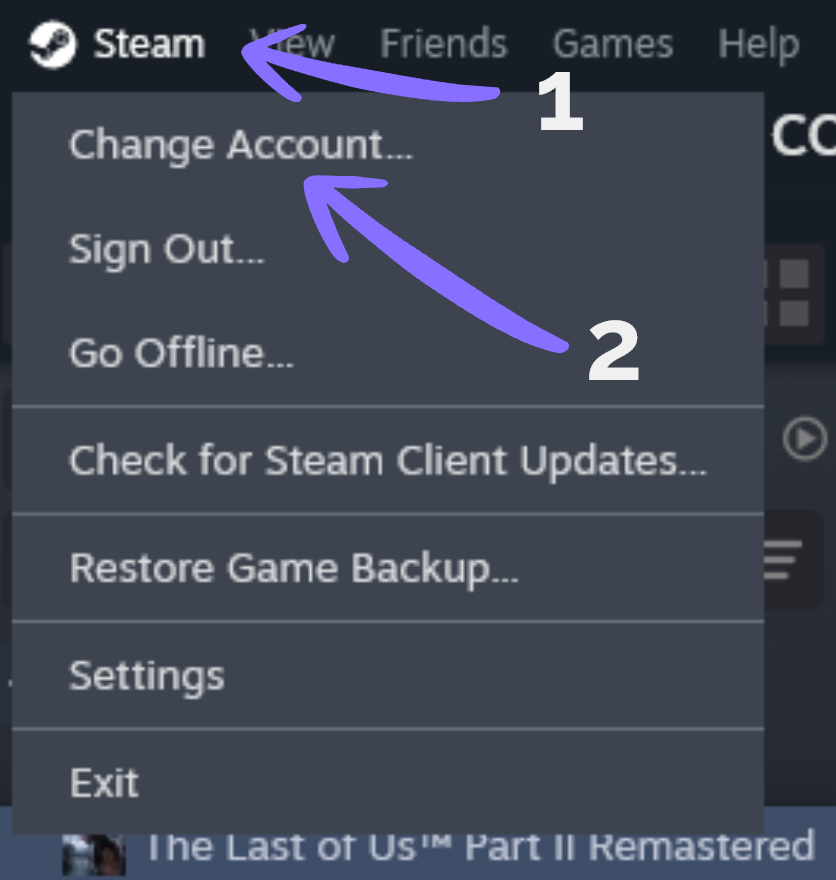
Use the “Change Account” button only. Do not click “Sign Out”, or you will wipe the saved data and will be forced to manually input the account credentials all over again!
Step 1: Sign into Steam 🔑
ꔷ Sign in using the Steam App.
ꔷ The credentials are located in the provided .txt file.
🚨 Strict Rule: Do not share these credentials with anyone. Sharing account details is strictly monitored, and doing so will result in your access being permanently revoked!
Disable Cloud Saves🔐
Why? Cloud sync can overwrite your progress or someone else’s. Let’s work together to keep everyone’s saves safe!
Here’s how to do it:
1. Click Steam (top-left) → Settings.
2. Go to Cloud
3. Disable “Enable Steam Cloud”
Toggle off “Enable Steam Cloud”.
(The toggle switch should be gray and positioned to the left. If it is already disabled, please leave it as is.)
Step 2: Install the Game 🎮
ꔷ Open your Steam Library.
ꔷ Install the game.
If you see a “CONNECT” button instead of Install or Play, please do the following:
1. Click the arrow 🔽 next to the button.
2. Click “This computer” → then select Install/Play.
This process applies to both installing and playing the game.
Rockstar Launcher
1. Start the game and log in to the Rockstar Launcher.
ꔷ The Rockstar credentials are located in the provided .txt file.
2. Select your desired language and continue the installation.
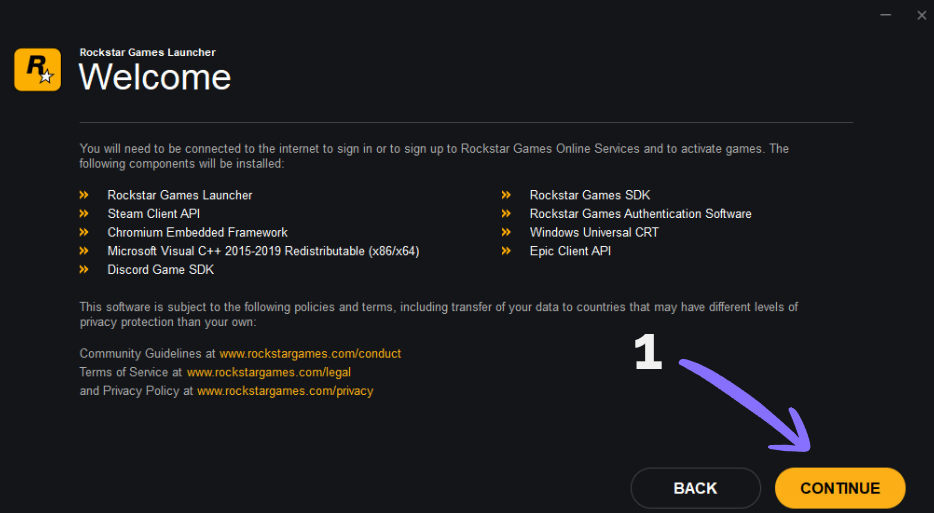
You must click “Not Right Now” when the Cloud Saves option appears.
Once the game opens and you reach the main menu, close the game completely.
Step 3: Go Offline 🌐➡️🚫
Click Steam (top-left corner) → Go Offline.
🚨 Strict Rule: You must always play in offline mode. Playing online causes account conflicts and ruins the experience for you and other users. Please be considerate!
Note: If the game uses DENUVO, please see the Denuvo Guide before going offline
Play!
New Step
Sign into Ubisoft Connect 🔑
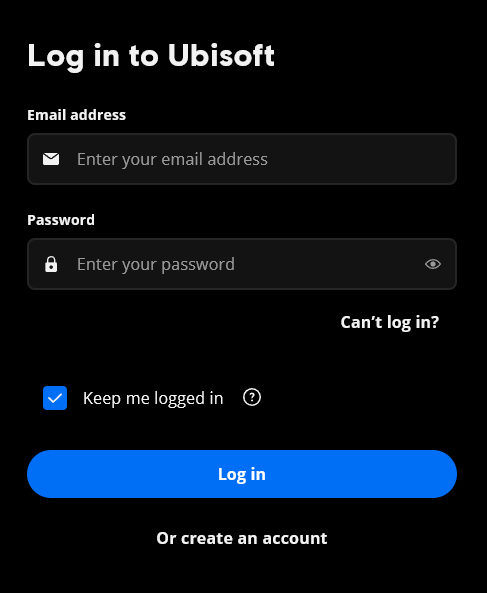
1. Sign in using the Ubisoft Connect App.
ꔷ The credentials are located in the provided .txt file.
🚨 Strict Rule: Do not share these credentials with anyone! Sharing account details is closely monitored, and doing so will result in your access being permanently revoked.
🚨 Important Note on Passwords:
The password may change periodically (this is a security measure required by Ubisoft).
If the password provided is incorrect, please try using the same password, but add 1 to the second number.
Example:
Current: 1password2
New: 1password3
Download the Game
1. Download the game from your library.
2. Run the game.
3. Without closing the game, proceed immediately to the next step!
Go Offline on Ubisoft Connect
You have two options to ensure Ubisoft Connect stays offline. Playing offline is mandatory to prevent account issues!
Option 1 (Recommended) ⭐
1. Download the two safe .bat files we’ve provided. These contain simple Windows Defender commands designed to block Ubisoft’s internet access. (Feel free to inspect them first for your peace of mind: Right-click the file → Open with Notepad).
2. Right-click the file and select Run as administrator.
Option 2
If you prefer not to use the .bat files, you can follow a YouTube tutorial to manually block the app’s connection yourself through Windows Defender Firewall.
DENUVO GUIDE
If your game uses Denuvo DRM, you will need to run it online once to activate your hardware. 🎮
1. Launch the game online.
2. Play until you reach the main menu.
3. Close the game completely.
4. Proceed immediately to Step 3 and go Offline. 🚀
Seeing an activation error?
This means the Denuvo daily activation limit has been reached. Please try to activate your game every few hours
If the game was released this week, wait times can take up to 72 hours.
Denuvo does not run on a set clock, and activations are limited to 5 per day, per account. You will need to try again every few hours. Once a player activates the game, a new license will open up 24 hours from that exact moment.
Denuvo may deactivate and require you to go online again if you do any of the following:
ꔷ Update your GPU/System Drivers
ꔷ Perform a Windows Update
ꔷ Update the Game
ꔷ Make hardware changes to your PC
Please be aware that doing any of the above will void your current DENUVO token and require you to wait for a new activation slot.
Account Switching for DENUVO
If the game recently updated and we have provided additional accounts, please follow these steps to activate the game (if your current account has no free activation slots):
Back up your saves! Locate your save files and make a copy. If Steam Cloud is accidentally active on the new account, your progress will be deleted. (Tip: Search YouTube for “[Game Name] save location Steam” to find your files).
1. Log in with the alternative account provided and immediately deactivate Steam Cloud.
2. Run the game until you reach the main menu, close it, and switch Steam back to Offline Mode.
3. If you still face activation limits, please check any other provided accounts. If none work, simply try again every few hours.
Step 1
New Step
Step 1: Sign into Steam 🔑
ꔷ Sign in using the Steam App.
ꔷ The credentials are located in the provided .txt file.
🚨 Strict Rule: Do not share these credentials with anyone. Sharing account details is strictly monitored, and doing so will result in your access being permanently revoked!
Step 2: Install the Game 🎮
ꔷ Open your Steam Library.
ꔷ Install the game.
If you see a “CONNECT” button instead of Install or Play, please do the following:
1. Click the arrow 🔽 next to the button.
2. Click “This computer” → then select Install/Play.
This process applies to both installing and playing the game.
Disable Cloud Saves🔐
Why? Cloud sync can overwrite your progress or someone else’s. Let’s work together to keep everyone’s saves safe!
Here’s how to do it:
1. Click Steam (top-left) → Settings.
2. Go to Cloud
3. Disable “Enable Steam Cloud”
Toggle off “Enable Steam Cloud”.
(The toggle switch should be gray and positioned to the left. If it is already disabled, please leave it as is.)
Ubisoft Connect
1. Run the game online for the first time.
2. Log in using the credentials provided in the .txt file! ;D
🚨 Important Note on Passwords:
The password may change periodically (this is a security measure required by Ubisoft).
If the password provided is incorrect, please try using the same password, but add 1 to the second number.
Example:
Current: 1password2
New: 1password3
Go Offline on Ubisoft Connect
You have two options to ensure Ubisoft Connect stays offline. Playing offline is mandatory to prevent account issues!
Option 1 (Recommended) ⭐
1. Download the two safe .bat files we’ve provided. These contain simple Windows Defender commands designed to block Ubisoft’s internet access. (Feel free to inspect them first for your peace of mind: Right-click the file → Open with Notepad).
2. Right-click the file and select Run as administrator.
Option 2
If you prefer not to use the .bat files, you can follow a YouTube tutorial to manually block the app’s connection yourself through Windows Defender Firewall.
Step 3: Go Offline 🌐➡️🚫
Click Steam (top-left corner) → Go Offline.
🚨 Strict Rule: You must always play in offline mode. Playing online causes account conflicts and ruins the experience for you and other users. Please be considerate!
Note: If the game uses DENUVO, please see the Denuvo Guide before going offline
Play!
DENUVO GUIDE
If your game uses Denuvo DRM, you will need to run it online once to activate your hardware. 🎮
1. Launch the game online.
2. Play until you reach the main menu.
3. Close the game completely.
4. Proceed immediately to Step 3 and go Offline. 🚀
Seeing an activation error?
This means the Denuvo daily activation limit has been reached. Please try to activate your game every few hours
If the game was released this week, wait times can take up to 72 hours.
Denuvo does not run on a set clock, and activations are limited to 5 per day, per account. You will need to try again every few hours. Once a player activates the game, a new license will open up 24 hours from that exact moment.
Denuvo may deactivate and require you to go online again if you do any of the following:
ꔷ Update your GPU/System Drivers
ꔷ Perform a Windows Update
ꔷ Update the Game
ꔷ Make hardware changes to your PC
Please be aware that doing any of the above will void your current DENUVO token and require you to wait for a new activation slot.
Account Switching for DENUVO
If the game recently updated and we have provided additional accounts, please follow these steps to activate the game (if your current account has no free activation slots):
Back up your saves! Locate your save files and make a copy. If Steam Cloud is accidentally active on the new account, your progress will be deleted. (Tip: Search YouTube for “[Game Name] save location Steam” to find your files).
1. Log in with the alternative account provided and immediately deactivate Steam Cloud.
2. Run the game until you reach the main menu, close it, and switch Steam back to Offline Mode.
3. If you still face activation limits, please check any other provided accounts. If none work, simply try again every few hours.
Family View
If the account has Family View enabled, we cannot share the PIN/code with you for security reasons. Please do not insist on receiving it, we appreciate your understanding! 🙏
Switching Between Accounts Without Logging Out
ꔷ Keep your personal Steam account active alongside ours!
1. Click Steam (top-left) → “Change Account…”
Use the “Change Account” button only. Do not click “Sign Out”, or you will wipe the saved data and will be forced to manually input the account credentials all over again!
Step 1